

This article helps you to configure backup jobs in the Infrasacle Cloud Backup (ICB) agent for Windows.
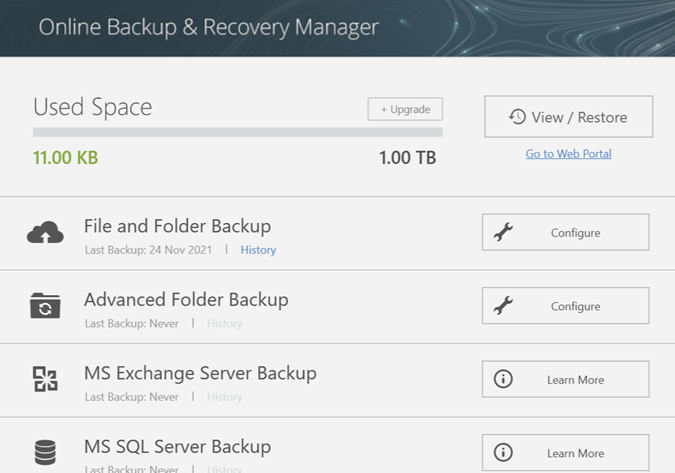
- Login into Online Backup Recovery Manager using a backup account.
- To configure the backup, select Configure across File and Folder backup.
- We can customize the selection of data by using the provided options:
Scan all folders: This option scans and selects all the drives and users of the system.
Just scan my personal folders: This option scans and selects only the user of the system.
Do not scan (Select Manually): This option helps us to select the files which have to be backed up manually.
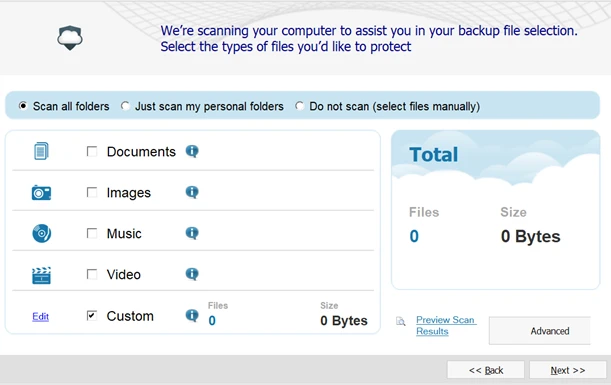
- Once selected appropriately, click on “Next”
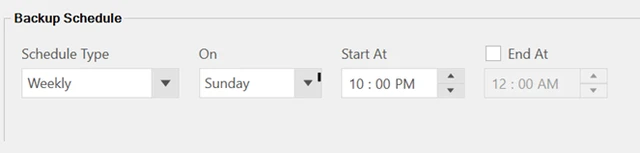
- Schedule the backups as per the requirement:
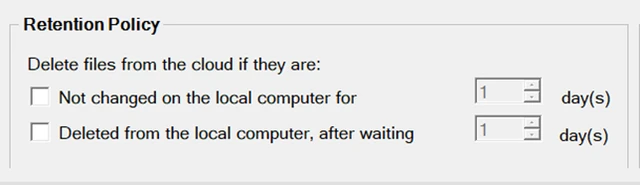
- Set the retention of the backed-up data:
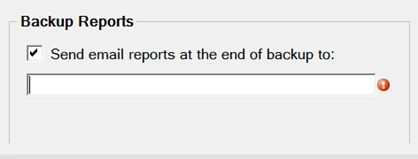
- If a report must be sent after the backup, provide the target email address:
- Once all the configuration has been made, click on “Finish” to configure the backup job.