Bring Your Own Storage
Overview
Bring Your Own Storage (BYOS) allows you to use your own cloud object storage as the backup destination for Infrascale Cloud Backup (ICB).
The current BYOS implementation supports:
- Wasabi
- Amazon S3
This article explains how to:
- Create and configure a storage bucket
- Create dedicated storage credentials
- Assign required permissions
- Generate access keys
- Register storage settings in ICB using SetPrivateStorageSettings.ps1
Before You Begin
Prepare the following:
- Infrascale partner credentials
- Access to your cloud storage provider
- Administrative permissions to create buckets, users, and access keys
BYOS Storage Model
Configure one bucket per organization.
Do not create separate folders for individual users. ICB automatically organizes backup data inside the bucket using internal prefixes and object names.
Logical structure:
<bucket>/<user-prefix>/<server-file-name>
Where:
| Component | Description |
| <bucket> | Customer-managed bucket provided to ICB |
| <user-prefix> | Automatically created and managed by ICB |
| <server-file-name> | Automatically generated by ICB |
Do not manually create, rename, or manage internal prefixes or files.
Storage Parameter Mapping
| Provider | Required Storage Parameter |
| AWS S3 | Region |
| Wasabi / S3-compatible | EndpointUrl |
For all providers:
ContainerName = bucket name
Configure BYOS for Wasabi
Step 1: Create a Bucket
Create a single bucket for the organization.
Example: company-byos-backup
ICB automatically creates internal storage prefixes inside this bucket.
Step 2: Create a Dedicated User
Create a dedicated non-root Wasabi user for ICB.
Recommended:
- Create a dedicated user
- Limit access to the BYOS bucket only
Alternative (broader access):
- Assign the WasabiFullAccess policy.
Step 3: Create and Attach a Bucket Policy
Create a custom policy and replace infrascale with your bucket name.
{
 “Version”: “2012-10-17”,
 “Statement”: [
   {
     “Sid”: “FullAccessToSpecificBucket”,
     “Effect”: “Allow”,
     “Action”: “s3:*”,
     “Resource”: [
       “arn:aws:s3:::infrascale”,
       “arn:aws:s3:::infrascale/*”
     ]
   }
 ]
}
Attach the policy:
- Open Policies
- Create a new policy
- Paste the JSON
- Save
- Open Users
- Assign the policy to the dedicated user
Root credentials are supported but are not recommended.
Step 4: Generate Access Credentials
For the dedicated user:
- Open the user
- Create an access key
- Save:
- AccessKey
- SecretAccessKey
These credentials are required during BYOS registration.
Step 5: Register Storage in ICB
Run: SetPrivateStorageSettings 1.ps1
.\SetPrivateStorageSettings.ps1 `
 -Username “partner-login” `
 -Password “partner-password” `
 -EndpointUrl “https://s3.eu-central-1.wasabisys.com” `
 -ContainerName “company-byos-backup” `
 -AccessKey “WASABI_ACCESS_KEY” `
 -SecretAccessKey “WASABI_SECRET_ACCESS_KEY”
| Parameter | Description |
| Username | Infrascale partner username |
| Password | Infrascale partner password |
| EndpointUrl | Wasabi endpoint URL |
| ContainerName | Bucket name |
| AccessKey | Wasabi access key |
| SecretAccessKey | Wasabi secret key |
Configure BYOS for Amazon S3
Step 1: Create a Bucket
Create a single bucket for the organization.
Example: company-byos-backup
Choose an AWS region appropriate for your environment.
Example: eu-north-1
ICB automatically manages all internal object organization.
Step 2: Create a Dedicated IAM User
Create a dedicated IAM user.
Recommended:
- Create a dedicated IAM user
- Generate access credentials
- Restrict access to the BYOS bucket only
Do not use the AWS root account.
Step 3: Assign Required Permissions
Create and assign the following IAM policy. Replace YOUR_BUCKET_NAME placeholder.
{
 “Version”: “2012-10-17”,
 “Statement”: [
   {
     “Sid”: “AllowGetFederationToken”,
     “Effect”: “Allow”,
     “Action”: “sts:GetFederationToken”,
     “Resource”: “*”
   },
   {
     “Sid”: “AllowBucketObjectOperations”,
     “Effect”: “Allow”,
     “Action”: [
       “s3:GetObject”,
       “s3:PutObject”,
       “s3:DeleteObject”
     ],
     “Resource”: “arn:aws:s3:::YOUR_BUCKET_NAME/*”
   }
 ]
}
| Permission | Purpose |
| sts:GetFederationToken | Generate temporary upload credentials |
| s3:GetObject | Support recovery and downloads |
| s3:PutObject | Upload backups |
| s3:DeleteObject | Remove backup data |
ICB uses:
- Long-lived IAM credentials stored in ICB
- Temporary upload credentials generated during backup
- Server-generated pre-signed URLs for download and cleanup
Step 4: Generate Access Credentials
For the IAM user:
- Open IAM
- Select the user
- Create an access key for an application running outside AWS
- Save:
- AccessKey
- SecretAccessKey
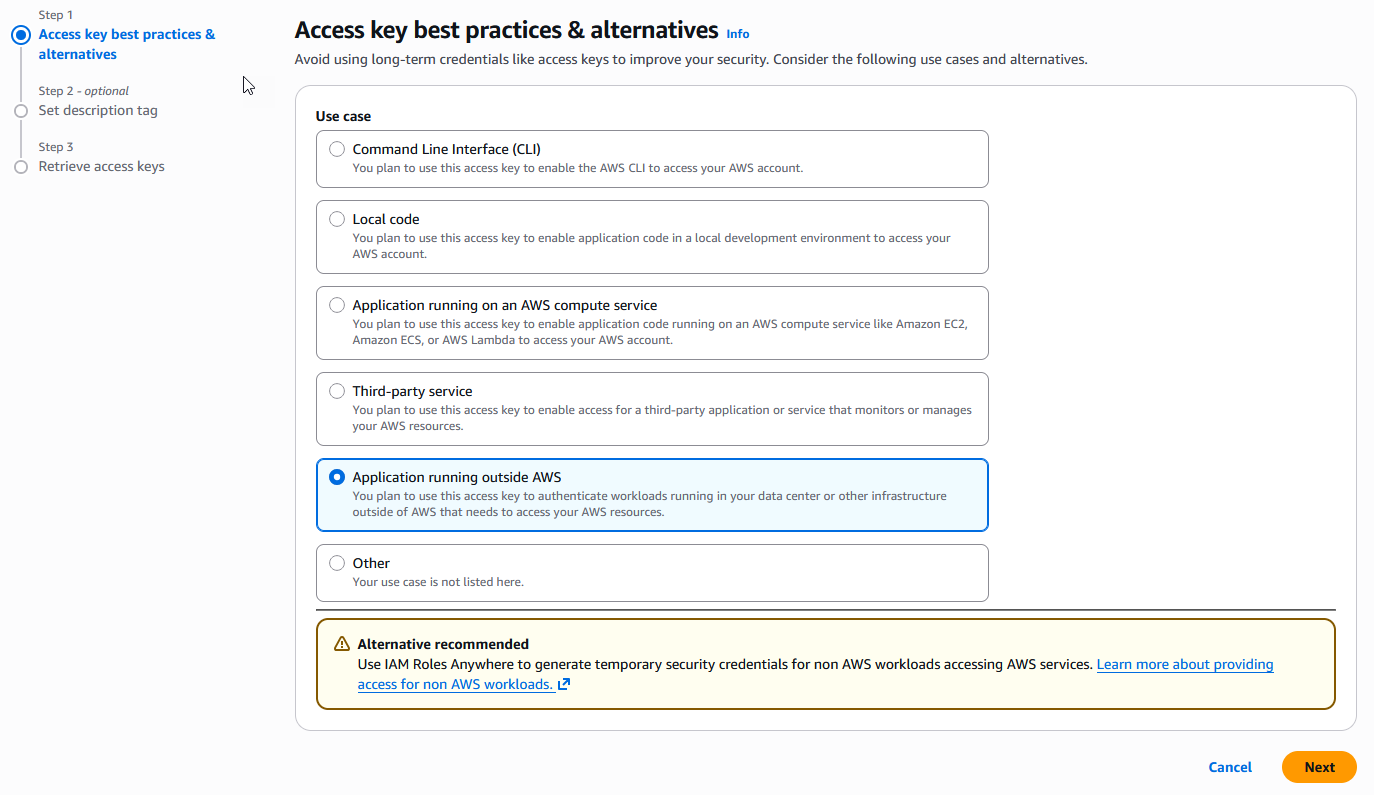
These credentials are required during BYOS registration.
Step 5: Register Storage in ICB
Run:Â SetPrivateStorageSettings 1.ps1
.\SetPrivateStorageSettings.ps1 `
 -Username “partner-login” `
 -Password “partner-password” `
 -Region “eu-north-1” `
 -ContainerName “company-byos-backup” `
 -AccessKey “AWS_ACCESS_KEY” `
 -SecretAccessKey “AWS_SECRET_ACCESS_KEY”
| Parameter | Description |
| Username | Infrascale partner username |
| Password | Infrascale partner password |
| Region | AWS region |
| ContainerName | Bucket name |
| AccessKey | IAM access key |
| SecretAccessKey | IAM secret key |
PowerShell Script Reference
Script location: InfrastructureTools\byos-boarding\SetPrivateStorageSettings.ps1
The script registers:
- EndpointUrl
- Region
- ContainerName
- AccessKey
- SecretAccessKey
Validation rules:
- Username — required
- Password — required
- ContainerName — required
- AccessKey — required
- SecretAccessKey — required
- Specify either EndpointUrl or Region
- General syntax:
.\SetPrivateStorageSettings.ps1 `
 -Username “<partner-login>” `
 -Password “<partner-password>” `
 (-EndpointUrl “<s3-compatible-endpoint>” | -Region “<aws-region>”) `
 -ContainerName “<bucket-name>” `
 -AccessKey “<access-key>” `
 -SecretAccessKey “<secret-access-key>”
Password Handling
If the password contains $, escape it according to PowerShell syntax.
Operational Recommendations
- Use one bucket per organization.
- Use dedicated non-root credentials.
- Restrict permissions to the BYOS bucket.
- Do not modify internal bucket structure.
- Store credentials securely.
- For Wasabi, prefer custom bucket-scoped policies.
- For AWS, use dedicated IAM users with minimum required permissions.
Provider Support Matrix
| Provider | Upload | Download | Delete | Authentication |
| Wasabi | Supported | Supported | Supported | Pre-signed URLs |
| AWS S3 | Supported | Supported | Supported | Temporary upload credentials and pre-signed URLs |
Known Limitations
- Only one bucket per organization is supported.
- Bucket structure is managed by ICB.
- Multi-bucket configurations are not supported.
- AWS uploads require sts:GetFederationToken.
- Object overwrite protection must be implemented through bucket policies if required.
- Custom object hierarchy is not supported.
Security Notes
For AWS:
- ICB stores long-lived IAM credentials.
- Upload operations use temporary credentials.
- Download and delete remain server-controlled.
- Customers with compliance or immutability requirements should implement additional bucket-side controls.
